Skip to content

All features.

Each has its own page, with the real notch to try.

Music

What you are listening to, beside the camera.

Artwork on the left, waves on the right: when something plays the notch grows just enough. Hover the artwork for title and artist, the waves for controls; open it for the full player.

All about music
    It is yours: use it like on a Mac. Hover the artwork, then the waves. Click to open the player and drag the progress bar.

    Tray

    A shelf for your files, always within reach.

    Drag a file towards the notch: it opens by itself and keeps the file until you need it. Then drag it anywhere, share it or AirDrop it.

    All about tray

    It is yours: use it like on a Mac. Drag a file from the desktop above to the notch. Files from your own computer work too.

    Notifications

    Messages arrive where you are already looking.

    Notifications show up in the notch with the app icon. Reply to Messages without leaving what you are doing.

    All about notifications

      It is yours: use it like on a Mac. Open the first message and tap Reply: you can really type.

      Today

      Your day at a glance.

      A summary page on the far left: the time, the next event with a countdown, the weather, the timer, reminders, the Tray and your AI limits. Each tile opens its page.

      All about today

        It is yours: use it like on a Mac. Tap a tile to open its page. Open the notch with no music and you start here.

        Timer

        Time passing, without another window.

        Pick the duration by dragging the ruler or with a preset. The timer stays in the notch as a live activity, its ring emptying.

        All about timer

          It is yours: use it like on a Mac. Drag the ruler, then tap a preset. The timer stays when you close the notch.

          Agenda

          Your day, in two columns.

          Events on the left, reminders on the right, like macOS widgets. A click opens the event; reminders are completed or pushed to tomorrow from here.

          All about agenda

            It is yours: use it like on a Mac. Tick a reminder to complete it. Both columns scroll.

            Weather

            Outside, now and in a few hours.

            Temperature, conditions, high and low, and the next hours with the chance of rain when it matters.

            All about weather

              It is yours: use it like on a Mac. Tap the button at the top right to refresh.

              AI limits

              How much Claude, Codex and Cursor you have left.

              For people who code with AI assistants: a page with your 5-hour and weekly limits, and when they reset. Before you run dry halfway through.

              All about ai limits

                It is yours: use it like on a Mac. Two assistants at a time in the compact view, four in the large one. The button on top refreshes.

                System

                CPU, GPU, memory and temperatures, without opening anything.

                A minimal page with the load of the CPU, GPU and memory and their temperatures. Hover a column for the detail. If you like, the same figures also live in the menu bar.

                All about system

                  It is yours: use it like on a Mac. Hover a column: the detail takes the place of the temperature.

                  Lock screen

                  A lock that opens with you, and your music at hand.

                  When the Mac is locked the notch shows a lock that opens when you unlock, like on iPhone. If music is playing, a small Liquid Glass player appears under the clock.

                  All about lock screen

                    It is yours: use it like on a Mac. Watch the lock and the player below: when you “unlock” the lock opens and the player goes away.

                    Calls

                    Answer and control the call from the notch.

                    When someone calls, on FaceTime or your iPhone, answer or decline from the notch. During the call the controls sit under the camera: mute, video, keypad, more and end.

                    All about calls

                      It is yours: use it like on a Mac. Open the notch and try Mute.

                      Devices

                      Your headphones arrive in the notch, in 3D.

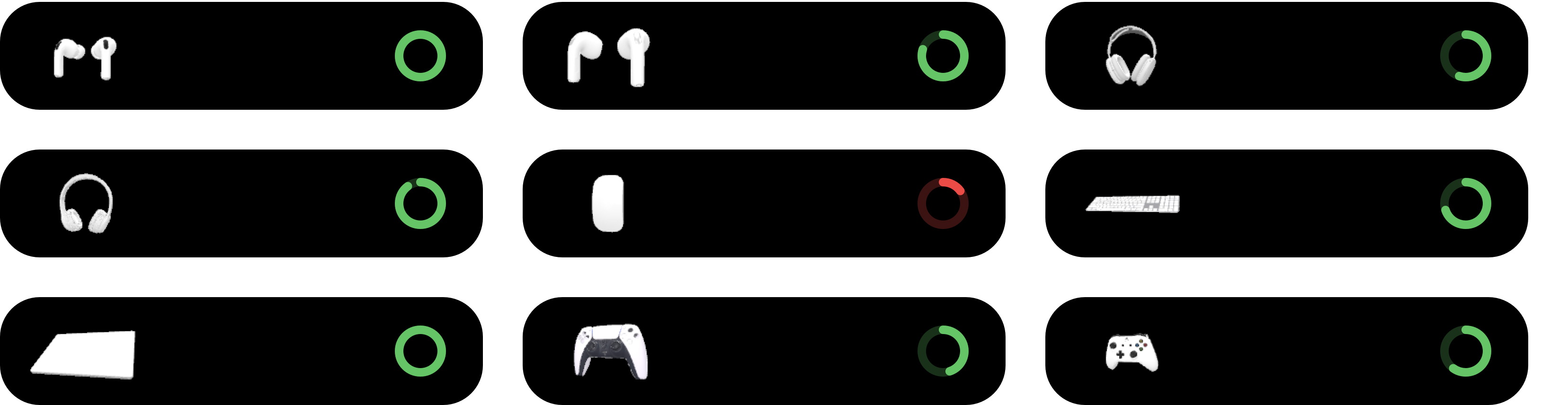
                      When you connect AirPods, Beats, a Magic Mouse or a controller, its 3D model appears on the left, swaying gently, and a ring with the charge on the right. No text: just the two sides.

                      All about devices

                      Displays without a notch

                      Even where there is no notch.

                      On Macs without a notch and on external displays UsefulNotch draws a fake notch in the menu bar, or a floating island like the Dynamic Island.

                      All about displays without a notch

                        It is yours: use it like on a Mac. This is the island: hover the artwork to see title and artist in the middle.

                        Look and shortcuts

                        Black like the real notch, or glass.

                        By default it is pure black, like the camera housing. On macOS 26 you can pick Liquid Glass, and change themes, accent and text size. Shortcuts do the rest.

                        All about look and shortcuts

                          It is yours: use it like on a Mac.